Intro
After creating my domain trust between AD and FreeIPA, I was left wanting to access restricted resources in Linux using my AD accounts. To circumvent this, I mapped a group from AD to FreeIPA and gave it the appropriate permissions.
Create the group in AD
The first step would be to create a group in AD to which sudo will be mapped. In my case, I created a group named ‘sudo’ to match the Linux counterpart. To do this, navigate to Server Manager -> Active Directory Users and Computers -> Users. Then, right-click and go to New -> Group. In the name, type ‘sudo’. After the item is created, it should look like:

Create policies
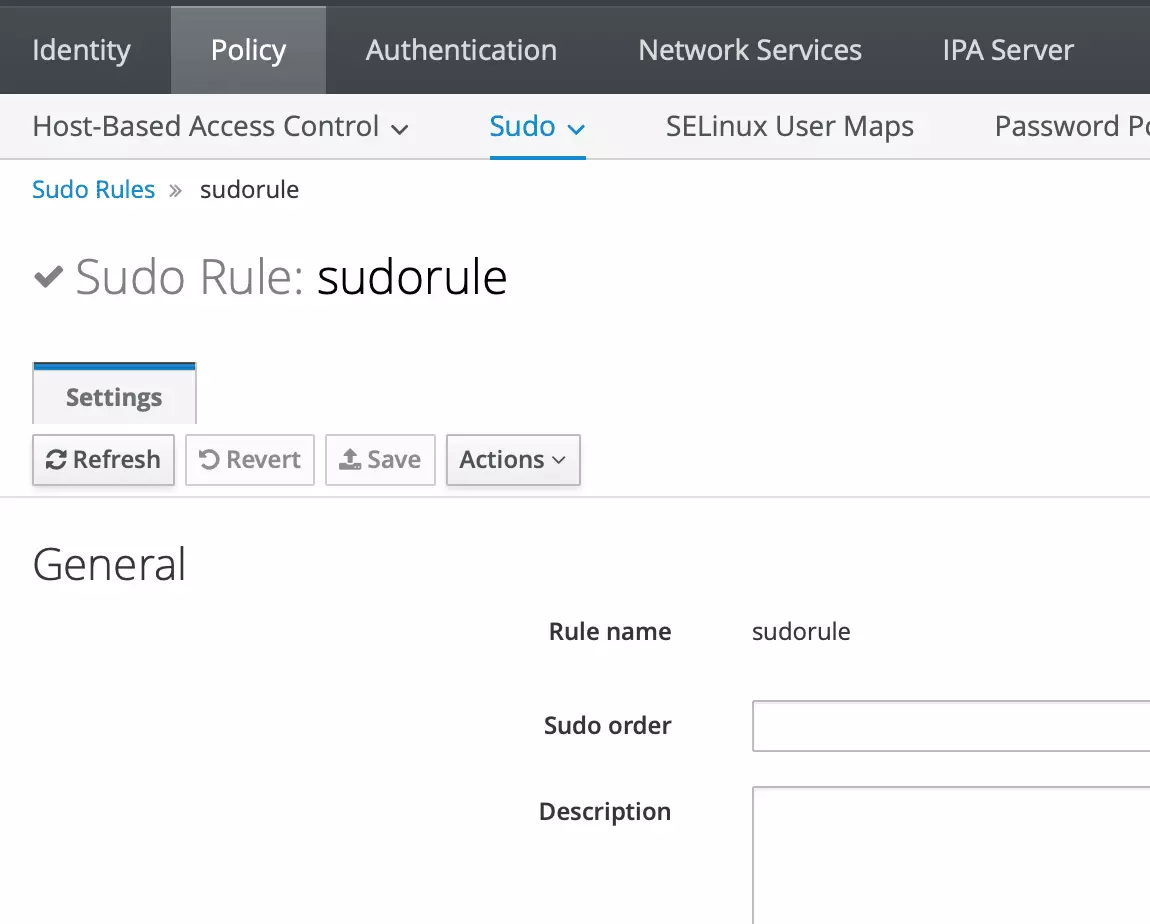
Navigate to Policy -> Sudo -> Sudo Rules. Here, you can create a new rule or directly use the ‘All’ rule. In my case, I created a rule titled ‘sudorule’.

To allow commands, navigate to ‘Run Commands’ and click ‘Any Command’. This will essentially make users root (very dangerous). It should look something like:

Add the external group to the sudo rule
Connect to your FreeIPA server as an admin. Then issue the command
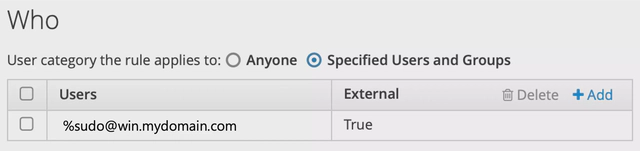
ipa sudorule-add-user sudorule --groups 'sudo@win.mydomain.com'This will map the external AD group to the sudo rule you just created. Navigate to the FreeIPA web interface under Policy -> Sudo -> Sudo Rules -> sudorule and It should look like:
Done!
Once everything is set-up, members of this group should be limited/allowed to elements and commands as defined by the policies set in place.